
This instruction book is for system update of Shiningintl ARM RK3576 board, for other Shiningintl ARM board, it may have little difference, please contact Shiningintl for help if needed.
step 1:
install the driver
Before the system update operation, please make sure the windows system has already installed the driver for the Rockchip board.
Please download the driver here/
step 2:
Please get the image from Shiningintl, as different clients may have different requirements, so please contact with Shiningintl to get the right system image, Shiningintl provides 2 system supported based on the RK3575:the android system and the Ubuntu system, as we will keep updating the system function, please get your right option after inquire with Shiningintl. And extract the image file to a folder in your computer.
step 3:
Download the update tools, the download tools is important to succeed to update the system, and please keep in mind that the tools may be updated also, please contact with Shiningintl with the latest update tools. We need to run this tools before update.
step 4:
After the Prerequisite steps are finished, now there are two ways to update the system:
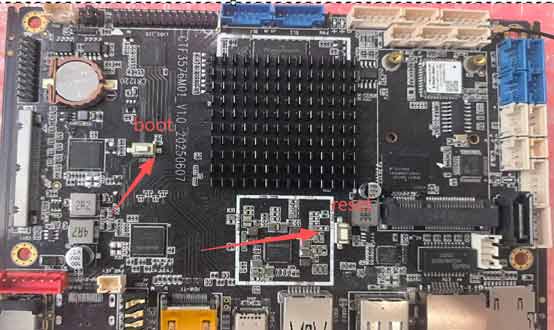
a. If the system is already booted up: press and hold the “boot” button , and then press the “reset” button together, then plug in the cable to connect the computer, the tool application will prompt that “Found one MASKROOM device ”, and then choose the right image file
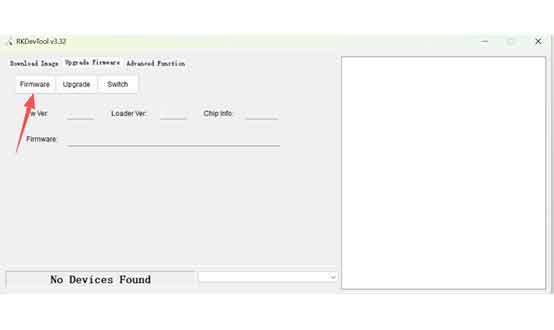
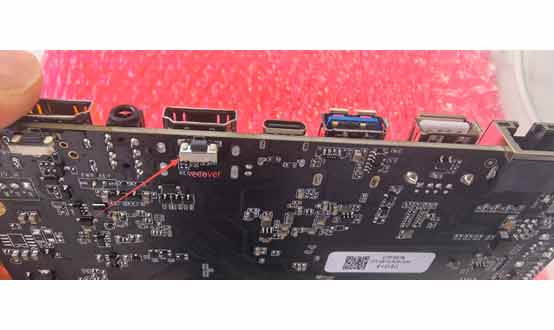
b. If the system is not booted: please press and hold the “recover” button to power on the rk3576 board, and then connect the board with the computer, if will also prompt that find the loader device, then choose the image file as the “a” step
step 5:
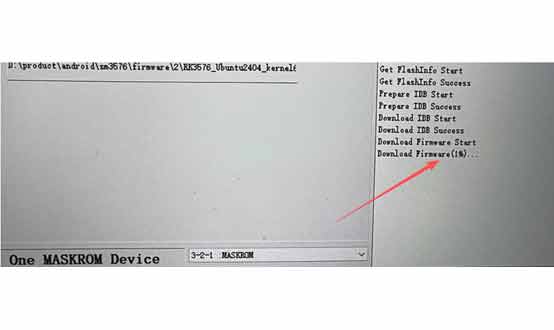
Press the “update” button, the update procedure will start, it will show the progress on the screen till 100%, and then will show the success result.
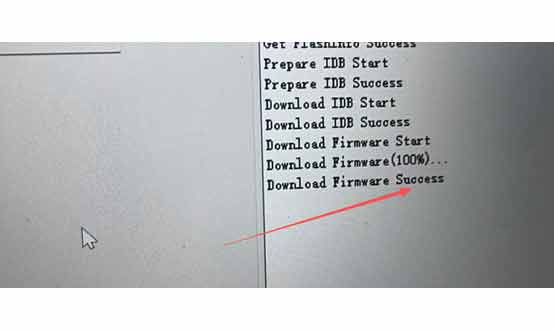
step 6:
Now the update is finished and successful, restart the system, the new system will work.